Docker Lab
Why Containers? How Docker Differs from Traditional VMs
Before diving into the lab, it's worth understanding what Docker actually does at a fundamental level because containers are not virtual machines, and the distinction matters for security.
With a traditional VM, you're running an entire guest operating system on top of a hypervisor. Each VM gets its own kernel, its own memory management, its own everything. It's heavy — gigabytes of overhead, minutes to boot, and significant resource duplication if you're running ten VMs on one host.
Docker containers take a completely different approach. Instead of virtualising hardware, they use three Linux kernel features to create isolated environments that share the host's kernel:
Namespaces provide isolation. Each container gets its own PID namespace (it sees its own process tree starting from PID 1), its own network namespace (its own IP address and network stack), and its own mount namespace (its own filesystem view). A process inside a container literally cannot see processes in other containers or on the host. It thinks it's the only thing running.
cgroups (Control Groups) limit resources. You can cap how much CPU and memory a container uses, so one misbehaving container can't starve the others or crash the host. Without cgroups, a container running a memory-hungry process could bring down the entire system.
OverlayFS creates layered filesystems. Docker images are built in read-only layers — the base OS, then installed packages, then your application code. When a container runs, a thin writable layer is added on top. This means ten containers using the same base image share those layers on disk, and builds are fast because only changed layers need to be rebuilt.
The practical result: containers start in milliseconds (not minutes), use megabytes of overhead (not gigabytes), and you can run dozens on a single host. But the security tradeoff is real — they share the host kernel, so a kernel vulnerability could affect all containers. VMs have stronger isolation boundaries.
How Production Applications Use Docker
In a real production environment, the developer writes code and a Dockerfile (the recipe for building the image). They push to a Git repository, a CI/CD pipeline builds the Docker image, runs security scans, and if everything passes, deploys the image to the production server.
The key insight is that the developer never touches the server directly. Code flows through Git, gets packaged into an immutable image, scanned for vulnerabilities, and only then deployed. The image IS the environment — same libraries, same versions, same configuration everywhere. No more "it works on my machine."
For multi-container applications — a web server, an API backend, a database — Docker Compose orchestrates everything. One docker-compose.yml file defines all the services, their networking, storage volumes, and dependencies. A single docker compose up brings the entire stack online.
Now, let's build one.
Setting Up the Environment
I started with a fresh Ubuntu Server VM running on VMware Workstation Pro. The first order of business was getting Docker and Trivy installed.
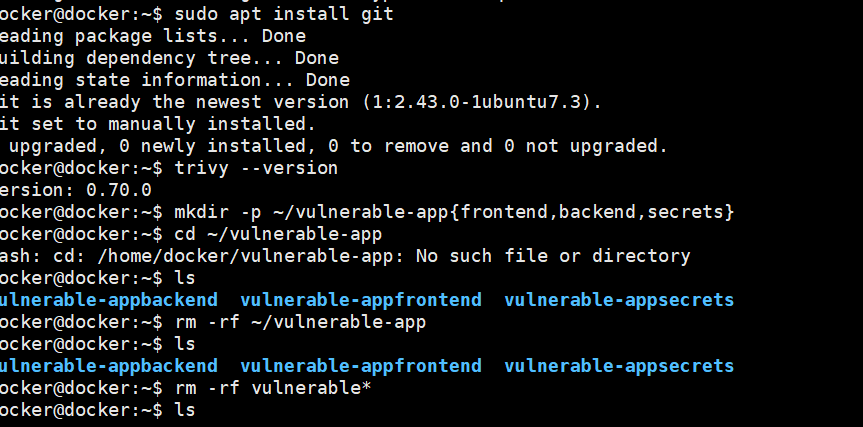
After installing Docker Engine and the Compose plugin, I installed Git and set up the project directories. The mkdir -p command with brace expansion creates the frontend, backend, and secrets directories in one go. There was a small hiccup with the path — mkdir -p ~/vulnerable-app{frontend,backend,secrets} missed the / separator, creating separate directories instead of subdirectories. A quick rm -rf and redo fixed it.
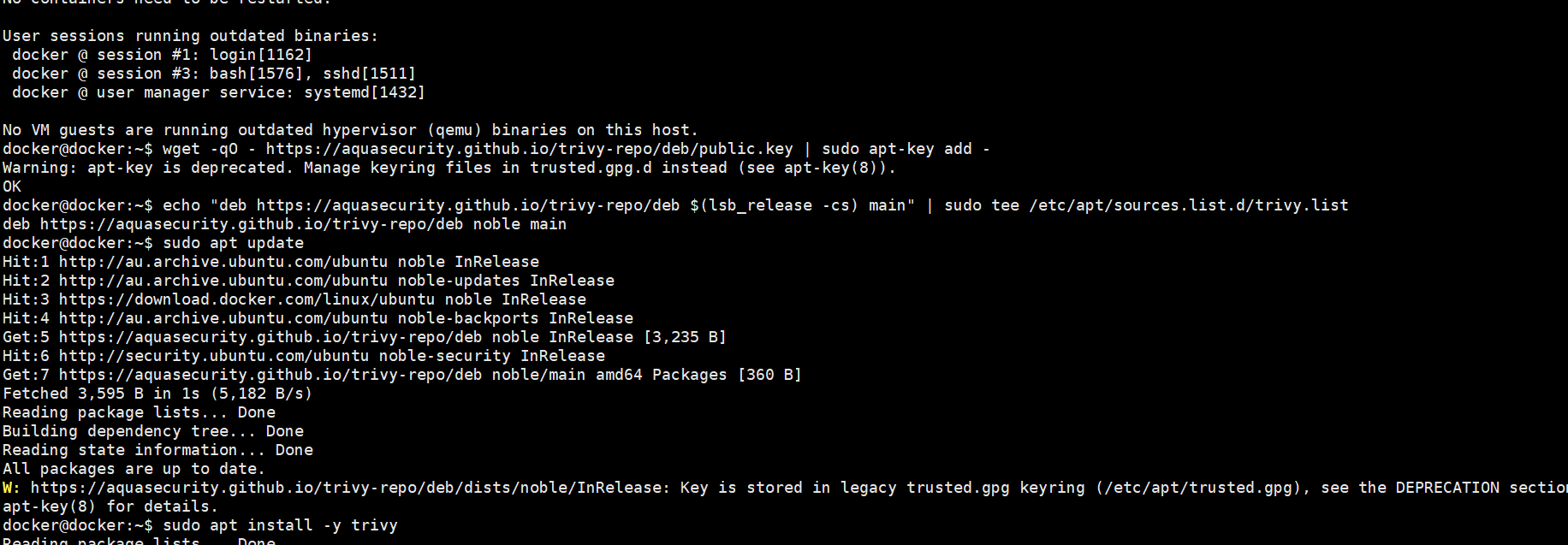
I added Trivy from Aqua Security's repository using wget for the GPG key and added the deb repository for the Ubuntu Noble release. Trivy is an open-source vulnerability scanner that can inspect container images, filesystems, and configuration files for security issues — CVEs in OS packages, vulnerable application dependencies, hardcoded secrets, and Dockerfile misconfigurations. All in one tool. A quick trivy --version confirmed version 0.70.0 was ready to go.
Building the Intentionally Vulnerable Application
The Backend — A Flask API with Hardcoded Secrets
The backend is where I planted the most interesting vulnerabilities. The application is a simple Flask API that connects to a PostgreSQL database and serves user data. But it's riddled with security issues — by design.
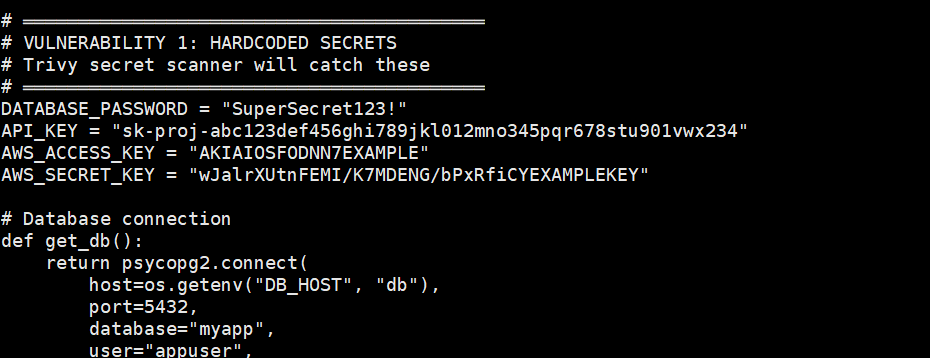
Right at the top of app.py, you can see the hardcoded secrets: a database password (SuperSecret123!), an API key (sk-proj-abc123...), AWS access keys (AKIAIOSFODNN7EXAMPLE). In a real codebase, this would be catastrophic — anyone with access to the source code (or the built Docker image) can extract these credentials. Trivy's secret scanner is specifically designed to catch patterns like these.
Beyond the hardcoded secrets, the API has SQL injection vulnerabilities (building queries with string concatenation instead of parameterised queries), command injection (passing user input directly to subprocess.run with shell=True), and an info endpoint that leaks the API key in its response.
The requirements.txt was deliberately populated with older package versions known to have CVEs — Flask 2.2.0, requests 2.25.0, urllib3 1.26.5, cryptography 3.4.8, and others. Each of these has documented vulnerabilities that Trivy should flag.
The Frontend — nginx with a Reverse Proxy
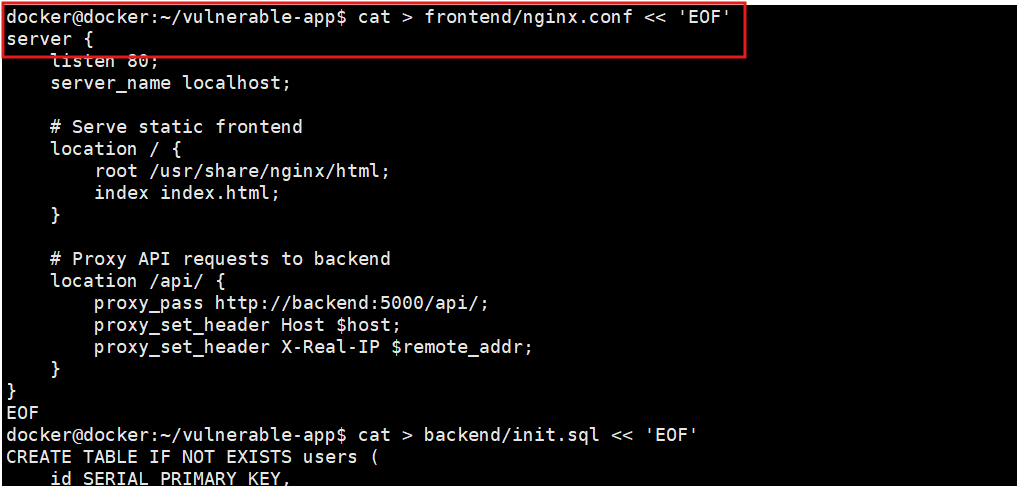
The frontend is straightforward — nginx serves a static HTML dashboard and proxies API requests to the backend container. The proxy_pass directive routes anything under /api/ to http://backend:5000/api/. Docker's internal DNS handles the name resolution — backend resolves to the backend container's IP address automatically because they're on the same Docker network.
The Database — PostgreSQL with Seed Data
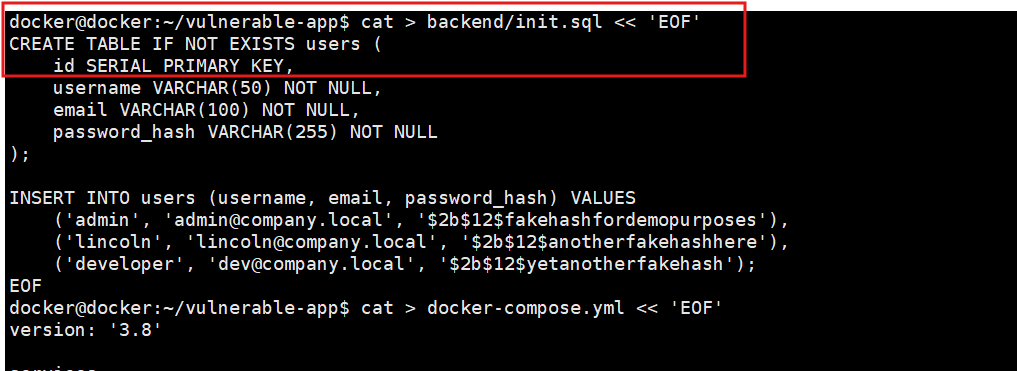
The init.sql script creates a users table and populates it with some test data — admin, lincoln, and developer accounts with fake password hashes. PostgreSQL's Docker image automatically runs any SQL file placed in /docker-entrypoint-initdb.d/ when the container first starts. This is how databases are typically initialised in containerised environments.
The Docker Compose File
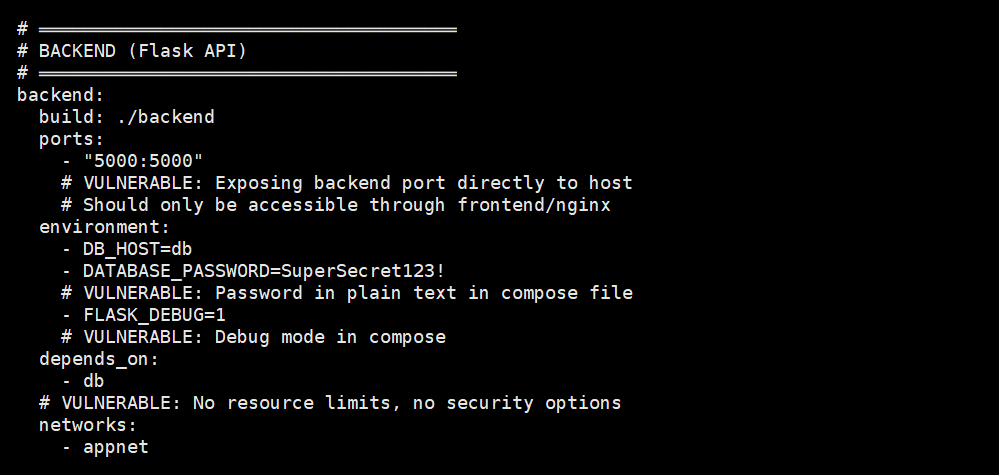
The docker-compose.yml ties everything together — and it's deliberately insecure. The backend port (5000) is exposed directly to the host, which means anyone can bypass nginx and hit the API directly. The database password (DATABASE_PASSWORD=SuperSecret123!) is sitting in plain text as an environment variable. Debug mode is enabled via FLASK_DEBUG=1. No resource limits, no security options, no network isolation between the frontend and the database.
In a properly secured setup, the backend port would be internal only (accessible only through nginx), the database would be on a separate internal network that can't reach the internet, secrets would be mounted as files from Docker secrets or an external secrets manager, and containers would run as non-root users with read-only filesystems.
Building and Running the Application
The first attempt at docker compose build failed — the frontend Dockerfile wasn't being found.

The error was clear: target frontend: failed to solve: failed to read dockerfile: open Dockerfile: no such file or directory. The backend started pulling the python:3.9 image but was cancelled because the frontend build failed. Docker Compose builds all services and if any one fails, the whole build stops.
After fixing the frontend Dockerfile, I built just the backend first to verify that part worked independently.
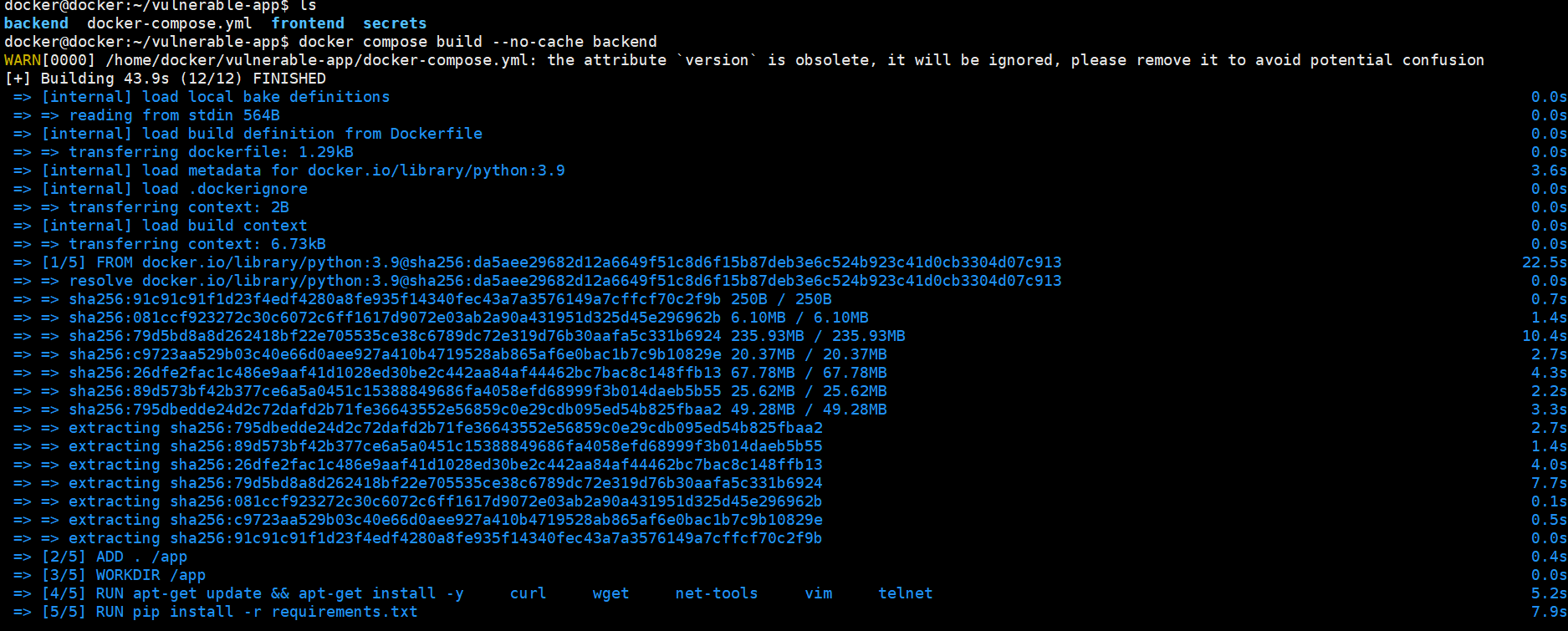
The backend build pulled the python:3.9 base image (intentionally old — a newer slim variant would have fewer vulnerabilities), ran ADD . /app (using ADD instead of COPY — a Dockerfile anti-pattern), installed system packages like curl, wget, vim, and telnet (all unnecessary in a production container and expanding the attack surface), and installed the Python dependencies from our deliberately vulnerable requirements.txt.
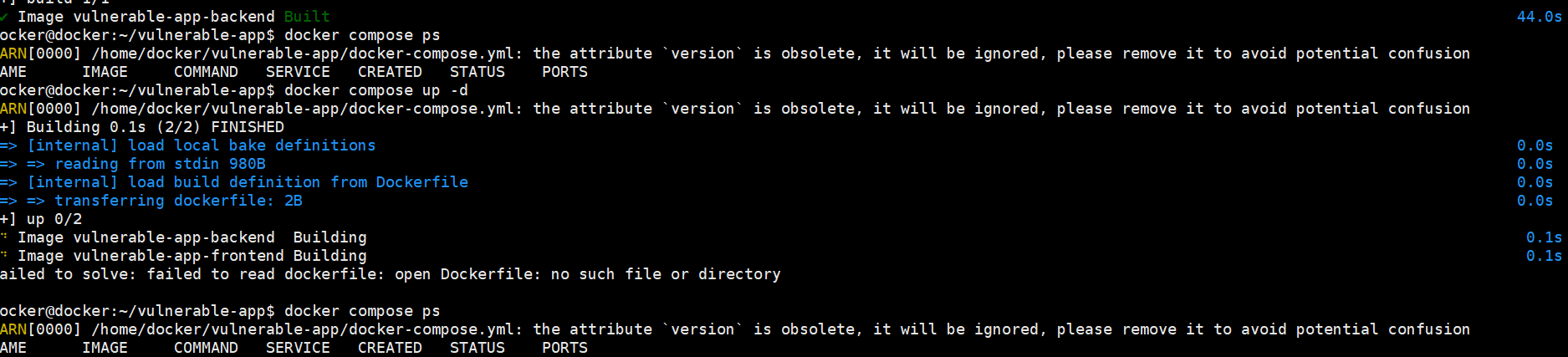
Even after building the backend successfully, running docker compose up -d still failed because the frontend Dockerfile wasn't resolving. The docker compose ps showed no running containers — the whole stack refused to come up with one broken service.
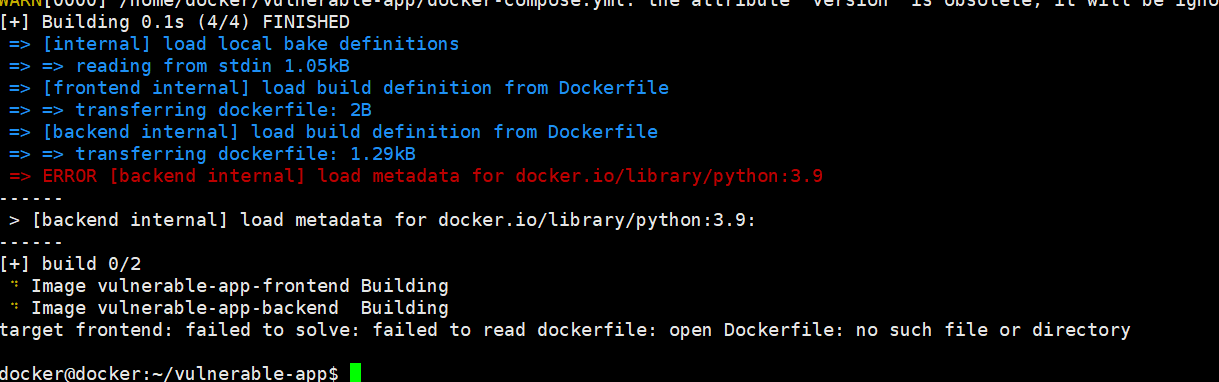
Another attempt hit a different error — this time the backend failed to load metadata for docker.io/library/python:3.9. This was a network connectivity issue to Docker Hub. The frontend was also still showing the same Dockerfile not found error. Docker builds need reliable internet access to pull base images from registries.

Finally, success. After resolving the frontend Dockerfile and the network issues, docker compose up -d brought up all three containers — frontend (nginx on port 80), backend (Flask on port 5000), and the database (PostgreSQL on port 5432). All showing "Up" in docker ps.
The docker ps output is worth reading carefully. Notice that the backend container shows ports 22/tcp, 0.0.0.0:5000->5000/tcp — port 22 is exposed because the Dockerfile has EXPOSE 22 (there's no SSH server in the container, but the port declaration itself is a misconfiguration that signals sloppy practices). The database on 0.0.0.0:5432->5432/tcp means PostgreSQL is accessible from outside the host — a significant security risk in any real deployment.
Testing the Vulnerable Application
With all containers running, I tested the endpoints.
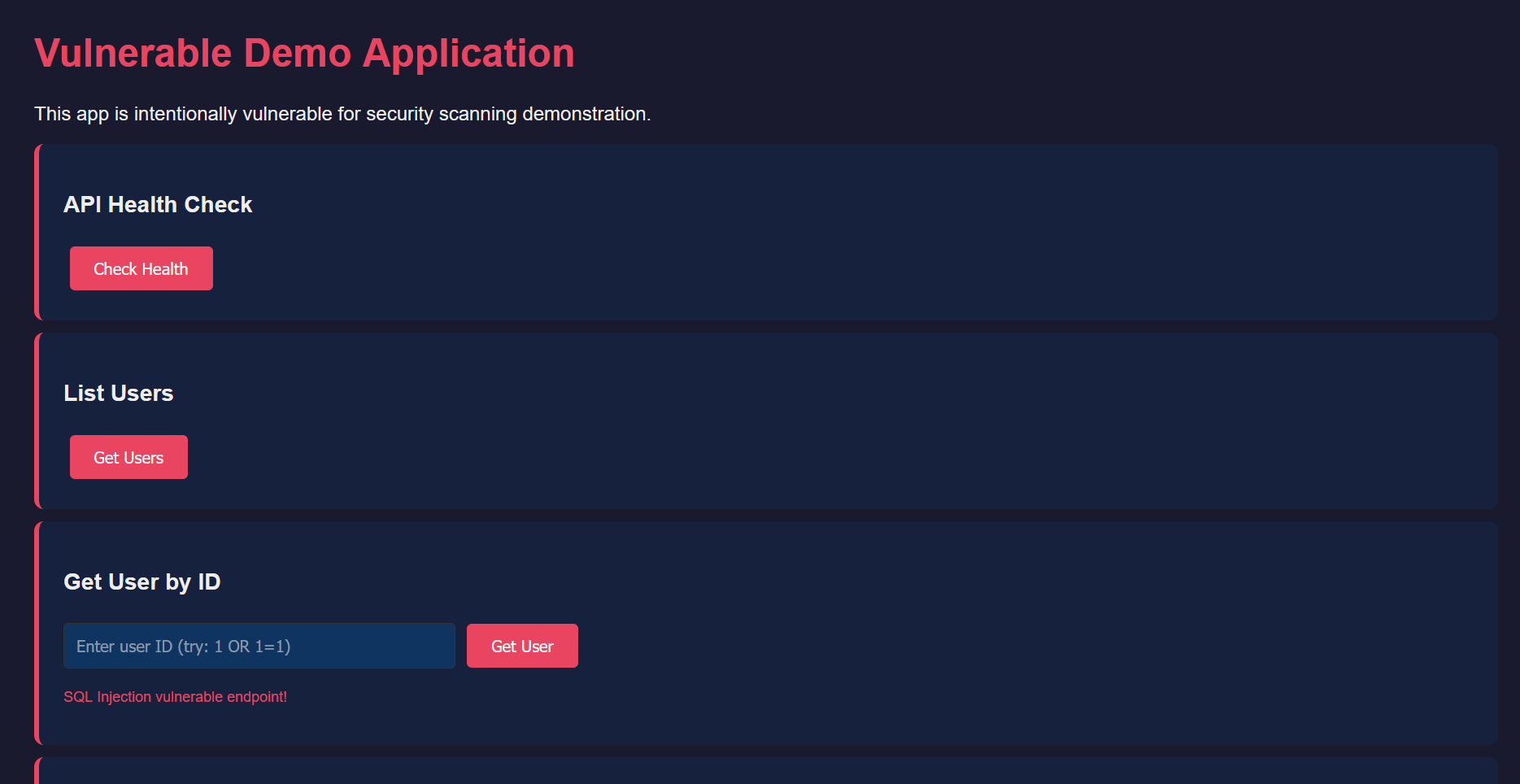
The frontend loaded in the browser — a dark-themed dashboard with buttons for each API endpoint. Notice the red warning text under some fields: "SQL Injection vulnerable endpoint!" and "Command Injection vulnerable endpoint!" These are deliberately labelled for this lab, but in a real application, these vulnerabilities would be silently waiting to be exploited.
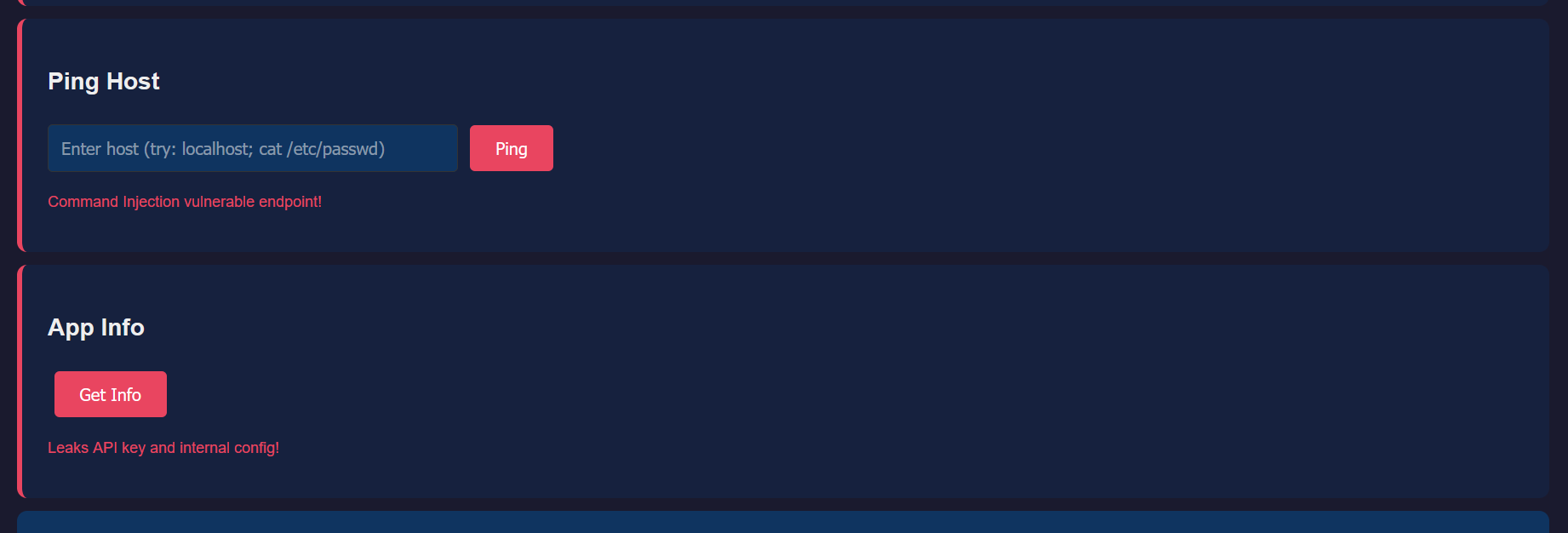
The Ping Host field accepts arbitrary input and passes it to the system's ping command. An attacker could enter localhost; cat /etc/passwd and the server would execute both commands — the ping AND the cat, returning the contents of the passwd file. This is command injection, and it's one of the most dangerous vulnerability classes because it gives the attacker arbitrary command execution on the server. The App Info section below it warns that it "Leaks API key and internal config!"
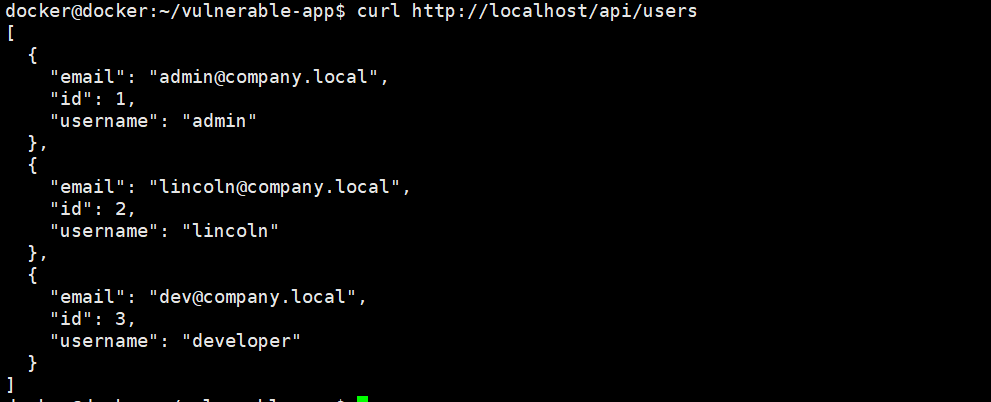
The /api/users endpoint returns user data from the database — admin, lincoln, and developer accounts with their email addresses. This confirms the full stack is working: nginx proxies the request to Flask, Flask queries PostgreSQL, and the JSON response comes back through the chain.
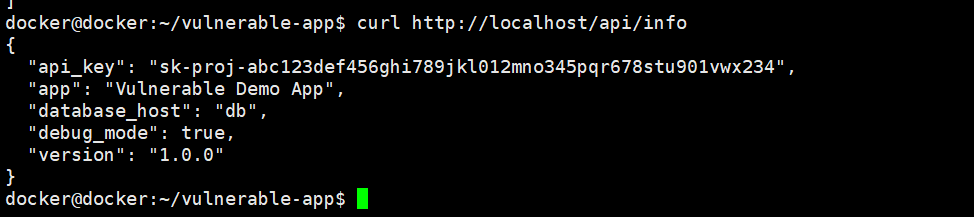
Here's the damaging one. The /api/info endpoint returns the API key in its response: sk-proj-abc123def456ghi789jkl012mno345pqr678stu901vwx234. It also exposes the internal database hostname (db) and confirms debug mode is enabled. In production, this endpoint would be handing attackers the keys to whatever service that API key authenticates to.
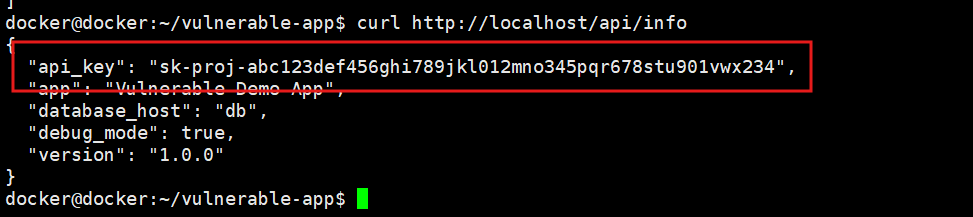
The same leak confirmed from the command line with curl http://localhost/api/info. The API key, database host, and debug mode flag are all visible in the JSON response to anyone who can reach this endpoint. This demonstrates that the vulnerability isn't just visible in the browser — any automated scanner or attacker with network access can extract these secrets programmatically.
Scanning with Trivy — Finding Everything Wrong
This is where it gets interesting. Time to point Trivy at our deliberately broken application and see what it finds.
Image Vulnerability Scan
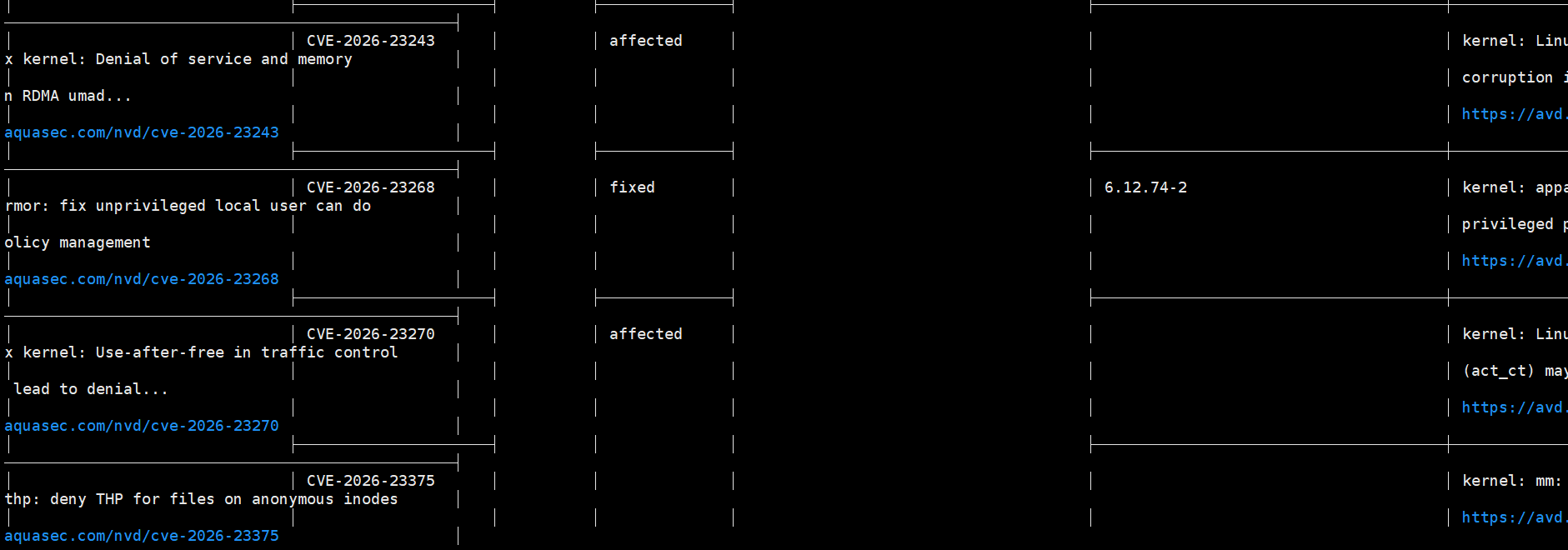
The first scan targeted the backend Docker image for OS-level vulnerabilities. Trivy immediately found multiple kernel-related CVEs — CVE-2026-23243 (denial of service and memory corruption), CVE-2026-23268 (unprivileged local user policy management issue, with a fix available in kernel 6.12.74-2), and CVE-2026-23270 (use-after-free in traffic control). These are in the base python:3.9 image because it ships with an older kernel and system libraries.
Notice the "affected" vs "fixed" status. CVE-2026-23268 shows "fixed" with a specific version — meaning upgrading the base image or the specific package would remediate it. CVE-2026-23243 and CVE-2026-23270 show "affected" with no fix version yet — these would need compensating controls until a patch is available.
Dependency Vulnerability Scan
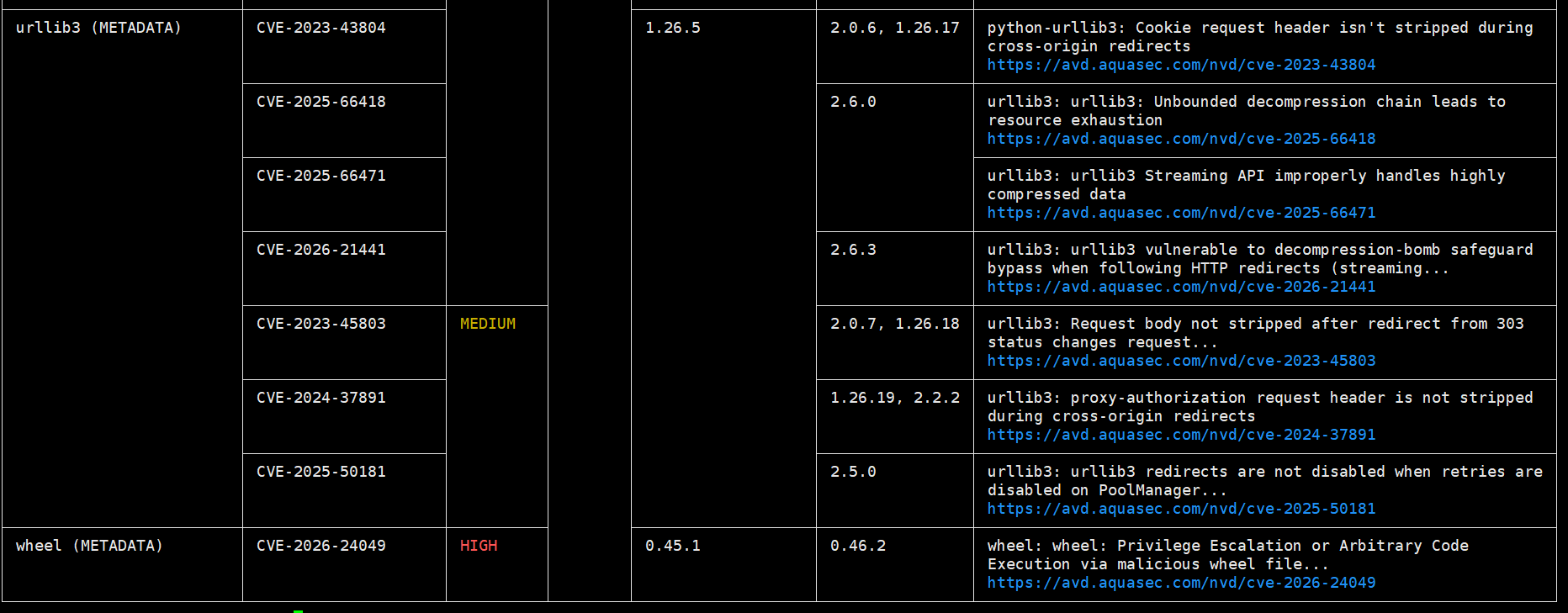
Trivy dug into the Python dependencies and found a collection of CVEs in urllib3 — our deliberately old version 1.26.5 has multiple known vulnerabilities: cookie leaking on cross-origin redirects (CVE-2023-43804), request body not stripped on redirects (CVE-2023-45803), unbounded decompression chains leading to resource exhaustion (CVE-2025-66418), decompression bomb safeguard bypass (CVE-2026-21441), and more. The wheel package also flagged with a HIGH severity CVE-2026-24049 for privilege escalation or arbitrary code execution via malicious wheel files.
Each finding shows the installed version, the fixed version, and a link to the advisory on aquasec.com. This is exactly the data you'd use to update requirements.txt with patched versions.
Secret Scanning — Filesystem
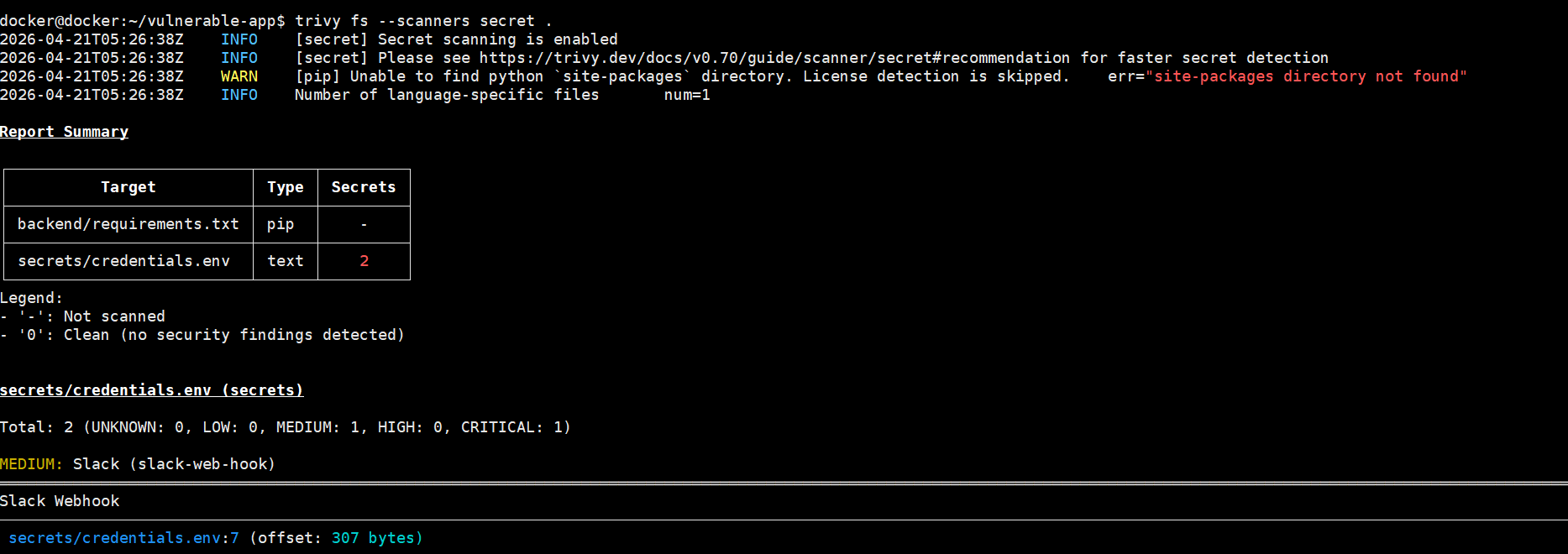
Running trivy fs --scanners secret . against the project directory found the secrets/credentials.env file immediately. The Report Summary table shows: backend/requirements.txt as a pip target (no secrets found there — just vulnerabilities), and secrets/credentials.env as a text target with 2 secrets detected.
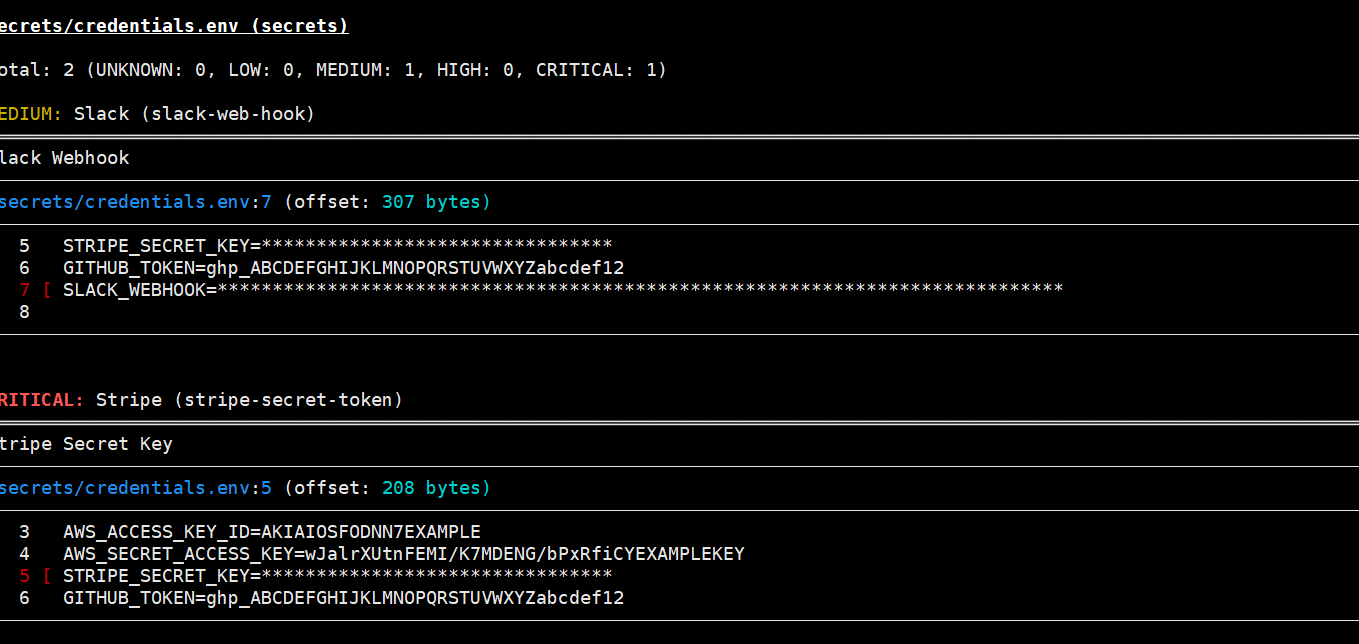
Here's what Trivy flagged: a Slack webhook URL (MEDIUM severity) and a Stripe secret key (CRITICAL severity). It identified them by pattern — Trivy knows what Stripe keys look like (sk_live_...), what Slack webhooks look like (https://hooks.slack.com/services/...), what AWS access keys look like (AKIA...), and what GitHub tokens look like (ghp_...).
The AWS access key and secret key are both visible in the output at lines 3 and 4. The Stripe key is classified as CRITICAL because it would give an attacker the ability to make charges, issue refunds, and access customer payment data. The Slack webhook is MEDIUM because it would allow sending messages to the channel but not reading them.
This is exactly what would happen if someone accidentally committed a .env file to a Git repository. Bots scan GitHub for these patterns in real-time — a leaked AWS key can be exploited within minutes of being pushed.
What This Lab Demonstrates
This project packs a lot of real-world vulnerability patterns into a small, scannable application:
Infrastructure vulnerabilities — old base images with unpatched OS packages, old Python dependencies with known CVEs, unnecessary system tools installed (curl, wget, vim, telnet expanding the attack surface).
Secrets management failures — hardcoded credentials in source code, secrets stored as Dockerfile ENV variables (persisted in image layers forever), plain text passwords in docker-compose.yml, credential files sitting in the project directory.
Configuration weaknesses — running as root, no health checks, debug mode enabled, database port exposed to the host, no network isolation between services, no resource limits, no security options.
Application vulnerabilities — SQL injection via string concatenation, command injection via unsanitised shell input, SSRF via unrestricted URL fetching, information leakage via the info endpoint.
Trivy caught the infrastructure vulnerabilities, the secrets, and the configuration issues automatically. The application-level vulnerabilities (SQL injection, command injection) would be caught by SAST tools like Semgrep or DAST tools like Burp Suite — different tools for different layers of the security stack.
The next step would be building the secure version — switching to a minimal base image, updating all dependencies, removing hardcoded secrets in favour of Docker secrets, adding non-root users, network isolation, resource limits, and fixing the application vulnerabilities with parameterised queries and input validation. But that's a post for another day.
For now, this lab gave me hands-on experience with every stage of container security: building, running, scanning, and understanding exactly what Trivy catches and why it matters.